HOW TO PUT MY COMPANY LOGO ON USPECTRUM TEST REPORT?
Product Function
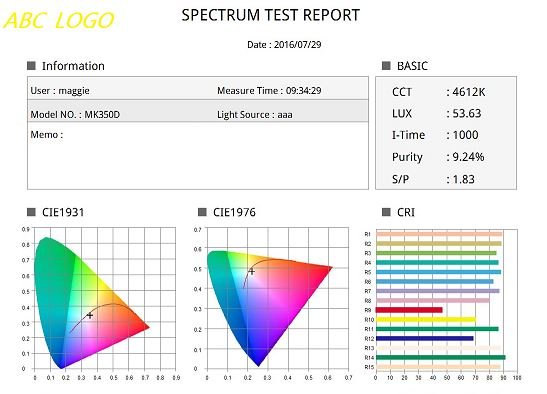
uSpectrum Report add Logo
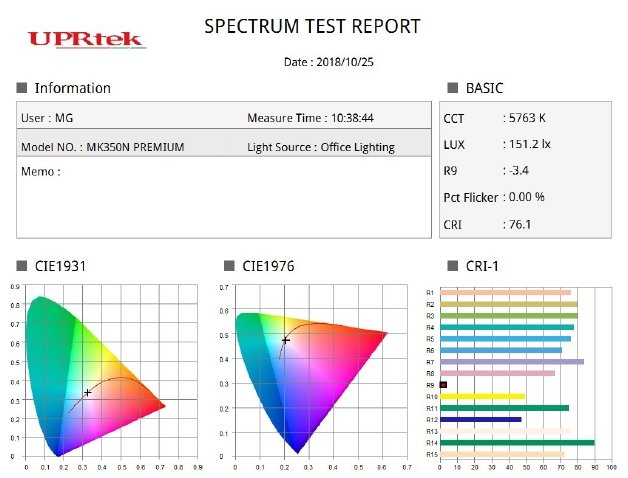
Yes, users can use uSpectrum software to place the company logo on the title of the measurement report, please refer below steps to build-it your company logo in the test report.
Step 1.
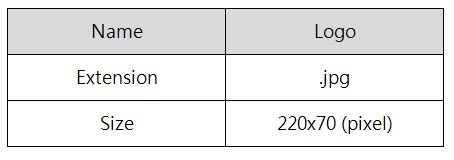
Please design your logo as 220×70 pixel and save the name as Logo in jpg file.
Step 2.
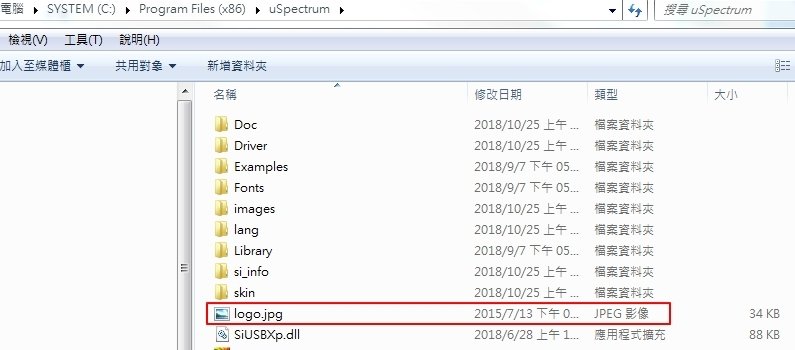
Copy the file “Logo.jpg” from storage location to the path where the uSpectrum files were installed – usually is installed in “C:\Program Files (x86)\uSpectrum\Logo.jpg”.
Step 3.
The Logo will show on the upper left corner.
uSpectrum PC Software
UPRtek design and produce handheld spectrometer not only provides an easier measurement method, but also abundant spectral information which is widely used in optics field. The handheld
This article explains how to download a firmware update for UPRtek handheld spectrometers. UPRtek on occasion will fix system bugs, add functionality or optimize performance – these fixes are passed to our customers through free firmware updates. Read More What is the difference between a Colorimeter and Spectrometer? Both devices capture light in order to analyze it’s properties for many different applications. However, there are some major differences that set them apart. In this article, we will explain the differences by contrasting... Read More Do you need to remote control your MK350D over wireless? You may want to isolate the device on a tripod or in an enclosed dark room, then remote control the MK350D using a mobile device (smartphone or tablet) for hands-free and cable-free operations. Here we explain the easy setup and configuration for this operation. Read More The UPRtek produced handheld spectrometer does not need to connect to a computer. After power on the instrument, users only need to process 3 simple steps and get the measurement data directly.1. Align the handheld spectrometer with the light source you want to measure. 2. Press the measurement button. 3. Read the data displayed on the handheld spectrometer screen. Read More The UPRtek handheld spectrometer is different from other brands in the design of the built-in memory. The UPRtek spectrometer has an SD card slot on the hardware so that users can read data through the computer in the following three ways. We wish to let users expand the measurement data without limit, and no longer worry about memory storage space not enough and spending a lot of time to delete the data. Read More MF250N Flicker Meter is using 4pcs AA batteries, the usage times of device will depend on the type of battery you choose. Read More MK350 Series Sepectrometer is using NP100 li-ion rechargeable battery; the spec is 3.7V, 2500 mAh, 9.3Wh. You may buy it at camera parts suppliers, camera accessories stores or please contact our agent in your country. The battery is compatible with MK350 series products, CV600 Cinematic light spectrometer and PG100N PAR Meter. Please kindly contact us if you still have any questions about the battery. Read More UPRtek Light Measurement Meters used abbreviations, full names, units and descriptions are as follows: Read More Dark Calibration is an optional operation in all of the UPRtek handheld spectrometer devices. The devices will always ask if you want to perform a Dark Calibration every time you turn on the device. While the device is in operation, you can also, through the “Options” menu, manually execute a Dark Calibration. But what is Dark Calibration used for?Read More Yes, international certification includes factory certification, product certification, traceability of measurement certification and third party certification of business operating capacity. Read More Since the LED monochromatic light source does not belong to color judgement of white light. Therefore, when you are using UPRtek handheld spectrometer measure a monochromatic light source, you will encounter following situations: Read More No, UPRtek handheld spectrometer measurement range is 360 ~ 750nm and 380 ~ 780nm. You will need to buy the equipment that compatible with UV and IR spectrum. Read More The difference half-wavelength between LED and fluorescent as below:LED: 15 ~ 20nm (Right Picture) Fluorescent: 1nm (Left Picture) The half-wavelength of fluorescent is more narrow than LED, you may use UPRtek handheld spectrometer measure fluorescent lamps, but it will not guarantee the results accuracy. Read More Usage time will depends on battery life, please refer below list about the usage time after battery fully charged. Read More This special designed is called "anti-fly card" functions, whichcan prevent SD card write error if SD card was hit accidentally.Please press the SD card which is placed in the SD card slot and the SD card will eject automatically. Read More Please format the SD card to FAT before use it on MK350, and make sure to use SD card size above 1G. Read More Please scroll down this page, find “Related Product” then click uSpectrum PC Software. Now please go to “files download” area and choose "uSPECTRUM PC Software - Software Installation", make sure your network connection is stable and you are ready to download. Read More Please scroll down this page, find “Related Product” then click uFlicker PC Software. Now please go to “files download” area and choose "uFLICKER PC Software - Software Installation", make sure your network connection is stable and you are ready to download. Read More uSpectrum PC Software is a professional Spectrum analysis software, it allows you to process large data analysis and measure more than 50 lighting measurement units. Besides measuring, users may generate own BIN chart, customized lighting quality range for production line and print out a lighting report with company logos. uSpectrum PC software is a powerful tool for lighting industrial.Please refer below compatibility list for uSpectrum PC software. You can also find more information at relative product below. Read More uFlicker PC Software is a professional Flicker analysis software, it allows you to process large data analysis and measure almost 20 Flicker parameters , its flexible design with variety options is going to help you to fight flicker. Read More Starting Jan. 2015, UPRtek removed the register process for Wing WiFi and uSpectrum PC software, therefore, users may use Wing WiFi and uSpectrum PC software with register.If you have a regist indication card included in your handheld spectrometer, please follow below process, our service team will help you to process the related operations. Read More You can use uSpectrum Analysis Software to view the measured files that have been saved in the memory SD card of the handheld spectrometer for big data comparison and analysis.Please refer to the following steps to view the saved measurement data. Read More You may make 1 test report or many test report on the same time, please follow below steps for how to make the test report. Read More Yes, users can use uSpectrum software to place the company logo on the title of the measurement report, please refer below steps to build-it your company logo in the test report. Read More UPRtek Handheld Spectrometer specific edition provides Wing WiFi SD card accessories, users can use your smart device through App Store or Google Play applications for wireless measurement. Read More No, it is considered to help user recognize and manage saved data easily, the saved data will be saved separate in smart device and spectrometer accordingly. When users controlling the measurement via smart device, the measurement data will save on smart device; controlling the measurement via spectrometer devices, the measurement data will save on the device. Read More You can find most serial numbers on a label that is usually prominently displayed on the exterior casing of the product. The serial number will be below the bar code (on the label). The first letter of the serial number will be “H.” Please see the examples below. Read MoreHow to download the latest firmware update for your UPRtek spectrometer?
What is the difference between a Colorimeter and Spectrometer?
How to remote control your MK350D from a smart phone or tablet?
How to use UPRtek handheld spectrometer for light measurement?
How to use the computer to read the measurement data of the SD card in the handheld spectrometer?
What kind of battery should I use for MF250N Flicker Meter?
What kind of battery should I use for MK350 Series Sepectrometer?
What does the abbreviation mean which is used on UPRtek spectrometer?
Do I need to do dark calibration every time I turn on my spectrometer? And what is dark calibration?
Does UPRtek Handheld Spectrometers have any international certification?
Dose UPRtek handheld spectrometer has correlated color temperature (CCT) when measuring monochromatic light?
Does UPRtek handheld spectrometer measure UV or IR Spectrum?
Does UPRtek handheld spectrometer measure the light that except LED light? Such as: fluorescent lamps (fluorescent lamps) ?
How long can I use UPRtek handheld spectrometer after battery had fully charged?
Why the SD card always stuck on the slot while in / out the slot?
Why my SD card cannot be used on UPRtek handheld spectromter?
How to download the uSpectrum PC Software?
How to download the uFlicker PC Software?
Is my handheld spectrometer compatible with uSpectrum PC software?
Is my handheld spectrometer compatible with uFlicker PC software?
Do I need to register before I use Wing WiFi card with UPRtek handheld spectrometer?
How to check saved data at uSpectrum PC software?
How to make the test report by uSpectrum PC software?
How to put my company logo on uSpectrum test report?
How to use the Wing WiFi card for uSpectrum APP wireless measurement?
Does uprtek handheld spectrometer will save the data on the same time when I process save data on smart device?
Where can I find the saved spectrum / CIE images through uSpectrum APPs on smart device after using uSpectrum APPs and save the data?
Where is my product's serial number?